
This guide describes how to read TPMS sensor IDs using OBD-II and then program them into new (blank) sensors. You will also find a video tutorial at the bottom of the page.
1. Preparation and connection to the vehicle
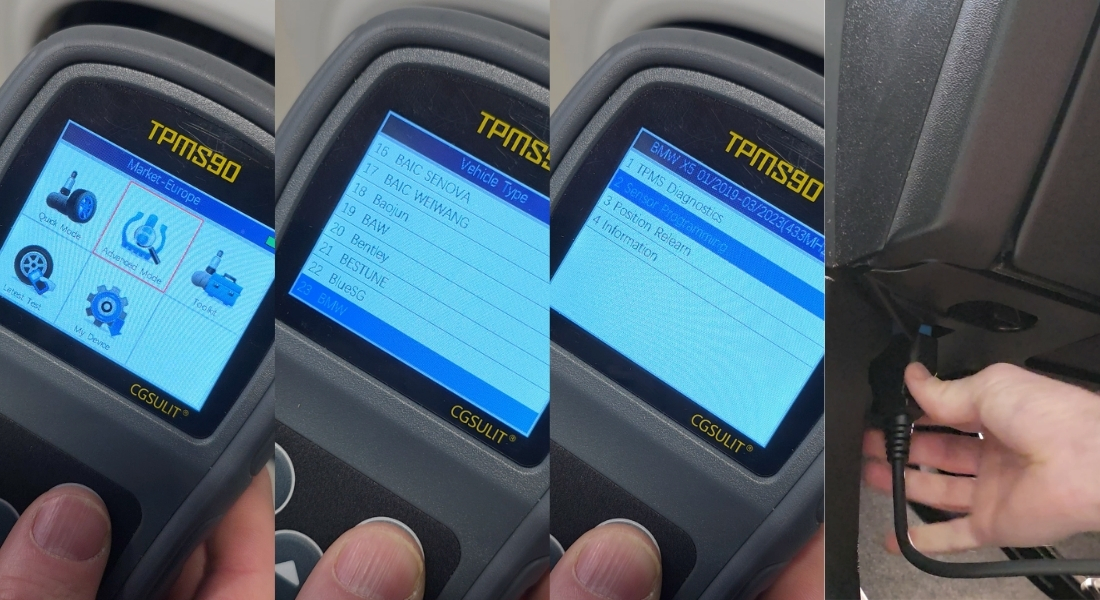
- On the TPMS90 device, select the Advanced Mode icon in the main menu.
- Select the make, type, and model of the vehicle.
- Select the Sensor Programming function.
Then:
- Connect the device to the vehicle using the OBD-II cable.
- Turn on the ignition (it is not necessary to start the engine).
Note: The OBD-II socket is usually located on the left side under the steering wheel.
2. Reading the sensor IDs from the vehicle
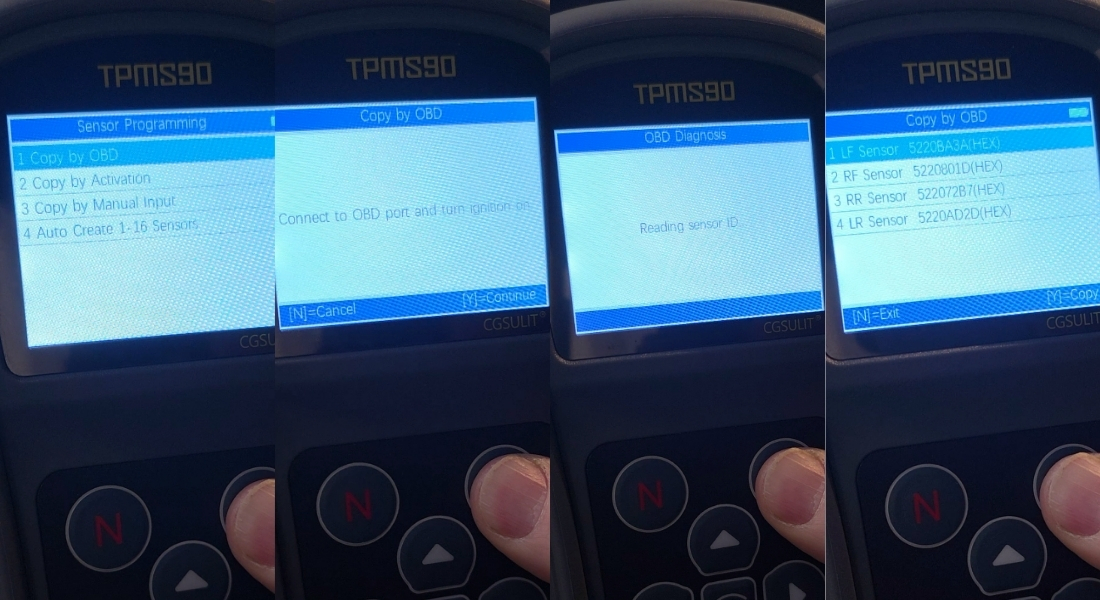
- After connecting, select the Copy by OBD option.
- The device will ask if you want to continue – confirm by pressing Y.
The device will then automatically read all TPMS sensor IDs stored in the vehicle.
- A list of sensor IDs will appear on the screen.
- Press the Y button to confirm and copy the IDs.
3. Programming empty sensors
Now copy the IDs you have read into the prepared empty TPMS sensors.
Recommended programming order:
- Select the sensor you want to program.
- Start with the left front wheel.
- Continue clockwise.
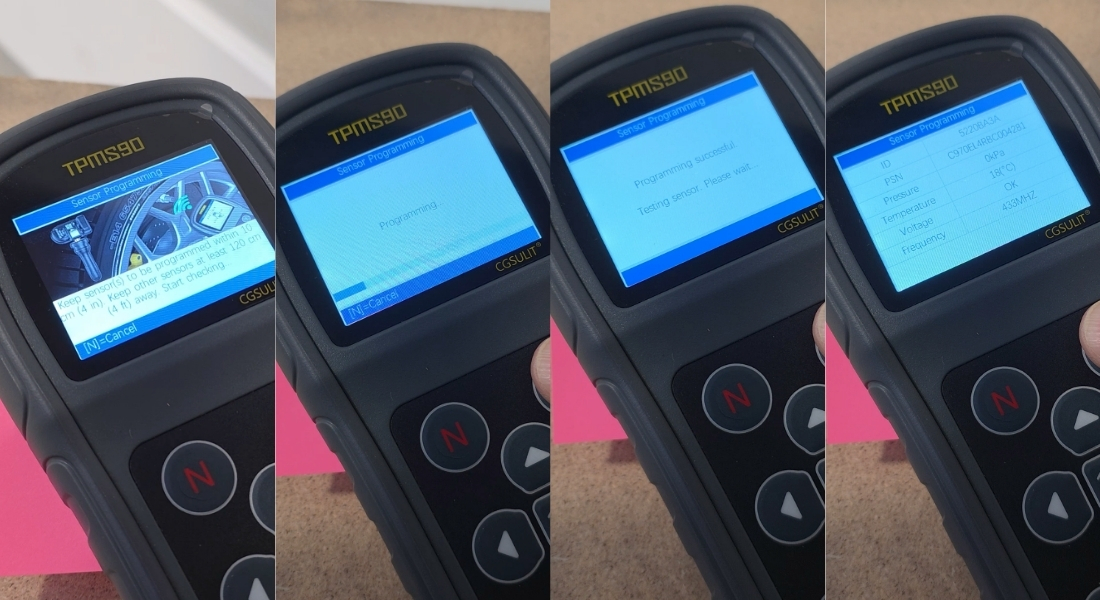
- The device will prompt you to place it on the sensor – place it on the valve.
- The programming progress will be displayed on the screen.
- When finished, the device will announce that the sensor has been successfully programmed and display its information.
- Confirm and continue with the next sensor.
IMPORTANT NOTICE: During programming, all other sensors must be at least 120 cm away from the sensor being programmed. Otherwise, the device may detect the wrong sensor.
Recommendation: Keep the programmed sensor near the device and place the other sensors on a distant table, for example. Alternatively, you can program the sensors while they are mounted directly on the vehicle.
4. Mounting the sensors
Once all the sensors have been programmed, you can mount them on the vehicle's wheels, thus completing the programming of the TPMS sensors.